1What SilkNest is
SilkNest is a clipboard manager for the Mac. Instead of a list window, a small golden 3D spider lives on your desktop. Every time you copy something, the spider catches it, wraps it in silk and sends it up a thread to a nest in the corner of the screen. Press one shortcut and the spider shoots a thread and the Nest unfolds from it, with your copies hanging in the web; pick one and it is pasted where you were typing.
There is no Dock icon and no main window. SilkNest lives in the menu bar (a small spider icon) and on the desktop. The only windows are Settings, the one-time permission window, a few one-time questions and the About box.
2What's new in 1.3.0
| Area | Change |
|---|---|
| Spider | Seen at a slight 3/4 angle (face and red eyes visible), smooth glossy body, and moments: the hunt glow running up the silk, an "I'm not looking" shield for secrets, the silk shot that opens the Nest, eyes that follow your pointer, a happy wiggle, and a nap on a thread. All of it respects Reduce Motion. |
| Nest | A compact pane in the middle of the screen (about 60%) instead of full screen; opens on the display with the mouse; a real search field; clicking inside never closes it. |
| History | 1000 items instead of 30; one page in the web at a time (scroll / Page Up / Page Down); search covers everything; pinned first. |
| Silk Notes | Reminders ("in 20 min", "at 4 pm") with Snooze and Done, checklists with [ ], a right-click menu, Done with Undo, notes in Nest search, and "Hang as note" on any item. |
| Paste Stack | Queue several copies and paste them in order with ⌘V (⌃⌥V, ⌘↩, "Add to Stack"). |
| Secrets | API keys, tokens, private keys, card numbers and one-time codes are recognised in text and inside screenshots: memory only, masked or blurred, gone after 2 minutes. |
| Screenshots | SilkNest asks before turning off macOS's floating screenshot preview, and restores your setting. |
| Uninstall | Settings → Uninstall SilkNest… cleans up and moves the app to the Trash. |
| Signing | A permanent "SilkNest Signing" certificate: Accessibility asked one last time, then kept through every update. |
| Storage | One encrypted file per item; deleting really deletes; automatic migration with a verified backup. |
| Memory | About 70 MB at rest, ~190 MB with the Nest open, ~55 MB with the spider hidden (1000 items). |
3Install and first launch
Three ways to install
- Disk image: download
SilkNest-1.3.0.dmg(silknest.app or GitHub Releases), open it, drag SilkNest to Applications. - Homebrew:
brew trust shxwat/tap && brew install --cask shxwat/tap/silknest - Terminal:
curl -fsSL https://silknest.app/install.sh | sh— checks Mac, Apple silicon and macOS 14+, downloads the zip, checks its SHA-256 and code signature, installs into Applications (or ~/Applications) and opens it. If anything fails, nothing is installed.
"Open Anyway" (first launch only)
SilkNest is not notarized by Apple (that needs a paid Developer ID). macOS blocks the first launch: open SilkNest, click Done, then System Settings → Privacy & Security → Open Anyway and confirm. After that it opens normally.
What happens on first launch
- Welcome menu (once): "Copy anything — I catch it", "⇧⌘Space — your Nest" (opens it), "Turn on 1-click paste" (only if Accessibility is off), "Start SilkNest at login".
- Screenshot question (once): "Catch screenshots instantly?" — default answer Keep the Preview (§7).
- Only one SilkNest runs at a time; history is restored; leftover temporary export files are deleted; update checks start.
Updating from 1.2.2
- History, pins, notes and settings move over automatically (with a backup that is removed after the next launch).
- If you use 1-click paste: a one-time window "One last time: turn on 1-click paste" — remove the old SilkNest entry in Accessibility and switch the new one on. It then stays on through every update.
- The screenshot question is asked once; if 1.2.2 had turned the preview off and you say no, it is turned back on.
4The spider
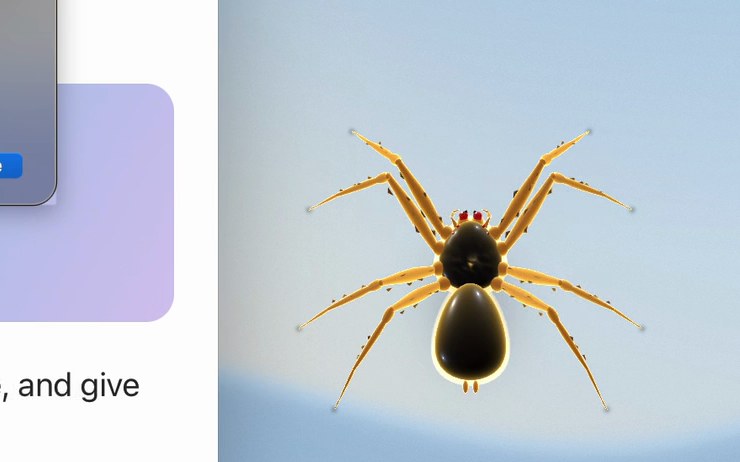
Look
- Golden legs with small spines, a dark glossy body and abdomen with a gold rim light — readable on any wallpaper, light or dark.
- 3/4 view New: tilted about 25°, so the face and eyes show. Only raised parts shift on screen; the feet, clicks and movement stay exactly where they are on the desktop.
- Eyes New: deep red, each with a bright specular dot; the two front eyes slightly bigger for a friendly look.
- Smooth glossy body New (no grainy texture), soft contact shadow.
- Glow: gold at rest, hot neon red while hunting, cooling back to gold; cool blue-white for secrets (§5).
On the desktop
| Thing | Where | What it does |
|---|---|---|
| The spider | Lower right of its display | Rests 30–60 s, then makes small moves near its spot. Only its body takes clicks; everything else passes through to your apps. |
| Nest marker | Screen corner | Gold web corner with a tiny spider, a bead per catch (up to 5) and a gold count pill. Caught items are pulled up here. |
| Stack strand New | Beside the nest marker | Only while the Paste Stack holds items: small previews and a gold "Stack N" counter. |
| Silk Notes | Top edge | Little spiders hanging on threads; each is a note (§14). |
| Menu bar icon | Menu bar | The main menu (§15). |
Behaviour
- Shrinks to 60% when nobody is near (same look); grows to full size when the pointer comes close, on click, drag or catch.
- If the pointer rests on it ~1.8 s, it steps ~150 pt aside. It turns and reaches toward a file you drag near it.
- Click → silk menu · double-click → Nest · press and drag → pick it up and put it anywhere, also on another display.
- Silk menu: Catch Copy (only when Hunt is off) · Nest / Close Nest · Hunt: On/Off · Pause / Resume · Settings · Hide · Clear Stack (N) (only with a stack).
- Uses 120 fps only while you interact, down to 10 Hz when still; when hidden its graphics are released.
5The spider's moments
The hunt — a normal catch New
"I'm not looking" — a secret New
- Never red. The catch stays gold; once it lands, the glow dims to a soft cool blue-white shield and the spider covers its eyes with its front legs (~2 s), then returns to gold.
- No bead of light runs up the silk for a secret.
- For an image, the secret is found after its text is read, so the shield follows a moment later.
Silk shot — opening the Nest New
On ⇧⌘Space the spider shoots a thread and the Nest unfolds from it; when it closes, the web folds back into the thread. If the Nest opens on another display, it comes from that display's nest corner.
Cursor chase New
While the pointer is near, the spider turns its head and eyes to follow it, and its body turns with it when you go round it.
Feeding frenzy New
Three copies within four seconds: once the burst is carried home, the spider does a tiny happy wiggle.
Sleep and wake New
After 10 minutes with no copies and nobody near, it rises onto a thread, tucks its legs in and dozes. The pointer coming near wakes it gently; a copy wakes it with a little jolt, and it goes straight to the catch.
Small life New
- While you're near and it's resting, its glow breathes slowly.
- Now and then, while you're near, it grooms its face with its front legs.
- Silk catches a golden glint as a cocoon travels, sways a little, and recoils when it lands.
6Catching copies (Hunt)
Hunt is on by default: every new copy is caught automatically — ⌘C, right-click → Copy, the Edit menu, any app.
| Kind | Hangs in the Nest as |
|---|---|
| Text | Paper fragment |
| Code | Monospace chip |
| Link | Tag with the domain |
| Image | Small thumbnail (images up to 40 MB) |
| Files | Compact object with the name |
Animation speeds: full (~1.6 s, Catch Copy near the spider), short (~0.8 s, normal catches) or snap (~0.45 s, rapid copies). It is only feedback: the item is stored the moment you copy, and SilkNest never takes focus.
Not caught
- Copies an app marks as concealed or transient (password managers do).
- Anything copied from known password managers (1Password, Bitwarden, KeePassXC, LastPass, Dashlane, Enpass, NordPass, Proton Pass, Keychain Access, Apple Passwords, Keeper, RoboForm, Strongbox).
- Copies made in apps you excluded New: Settings → Never catch from → Add App…, or menu bar → Don't Catch from App while that app is in front. Catch Copy (spider menu or its shortcut) and dropping on the spider still work there, since you ask for them.
- Duplicates — the earlier copy moves to the front instead.
- Text that terminals copy just by selecting (iTerm2, kitty, WezTerm, Alacritty, Warp, Ghostty, Hyper) unless you pressed a key within 1 s or right-clicked within 8 s (setting).
- Detected secrets, if "Never catch secrets" is on (§8). Anything while the spider is paused.
Hunt off (spider menu, menu bar "Catch Every Copy", or Settings): use Catch Copy in the spider menu or a Catch Copy shortcut.
7Screenshots and text in images
- Screenshots copied to the clipboard (⌃⇧⌘3/⌃⇧⌘4) are caught like any copy.
- Screenshots saved as files (⇧⌘3, ⇧⌘4, ⇧⌘5, Screenshot app) are caught too: SilkNest watches your screenshot folder (Desktop unless changed in ⇧⌘5 → Options) and recognises macOS's screenshot marker. Only new screenshots, Hunt on.
- Instant screenshots New: macOS's floating preview delays saving by ~5 s. SilkNest asks once — "Catch screenshots instantly? This turns off macOS's floating screenshot preview." — default Keep the Preview. Yes turns the preview off; turning the option off later, or uninstalling, restores exactly what macOS had.
- If macOS blocks the screenshot folder, the spider asks once and offers "Allow access in Settings".
Text read from images (OCR)
Every caught image is read on your Mac with Apple Vision (in a short-lived helper, max 1600 px). The text makes images searchable and powers Paste Text. Nothing leaves the Mac. New A new image is not written to disk until its text has been read and checked for secrets, and it is drawn softly blurred — while flying and hanging — until then.
8Secret protection New
SilkNest recognises secrets in copied text and in the text of screenshots and images:
- API keys and tokens with a long random body:
sk-,sk-ant-,sk-proj-,r8_,ghp_ gho_ ghu_ ghs_ ghr_,github_pat_,xoxb- xoxp- …,AKIA/ASIA,AIza,glpat-,hf_ - JWTs; PEM and OpenSSH private-key blocks; card numbers (known prefix + Luhn check)
- One-time codes: a bare 6–8 digit code from Messages, Mail, WhatsApp, Telegram, Signal or an authenticator, or a short message that says it is a code
What happens (Protect secrets on — the default)
- Memory only — never written to disk.
- Text shown masked (
r8_••••••••Oz4,•••• •••• •••• 4242); images shown blurred with a "contains a secret" label. - Search sees only the mask, the app and the word
secret. - Removed after 2 minutes unless pinned (pinned secrets still stay in memory only). Pasting, Paste Text and drag-out still give the real value.
- The spider's "I'm not looking" moment (§5).
- A saved screenshot file with a secret: the spider asks once — "This screenshot contains a secret." → Move the file to Trash / Keep the file.
- Images saved by earlier versions are checked at launch; one with a secret leaves the disk.
Settings: "Protect secrets" (on) and "Never catch secrets at all" (off). With protection off, secrets are treated like any copy.
9The Nest
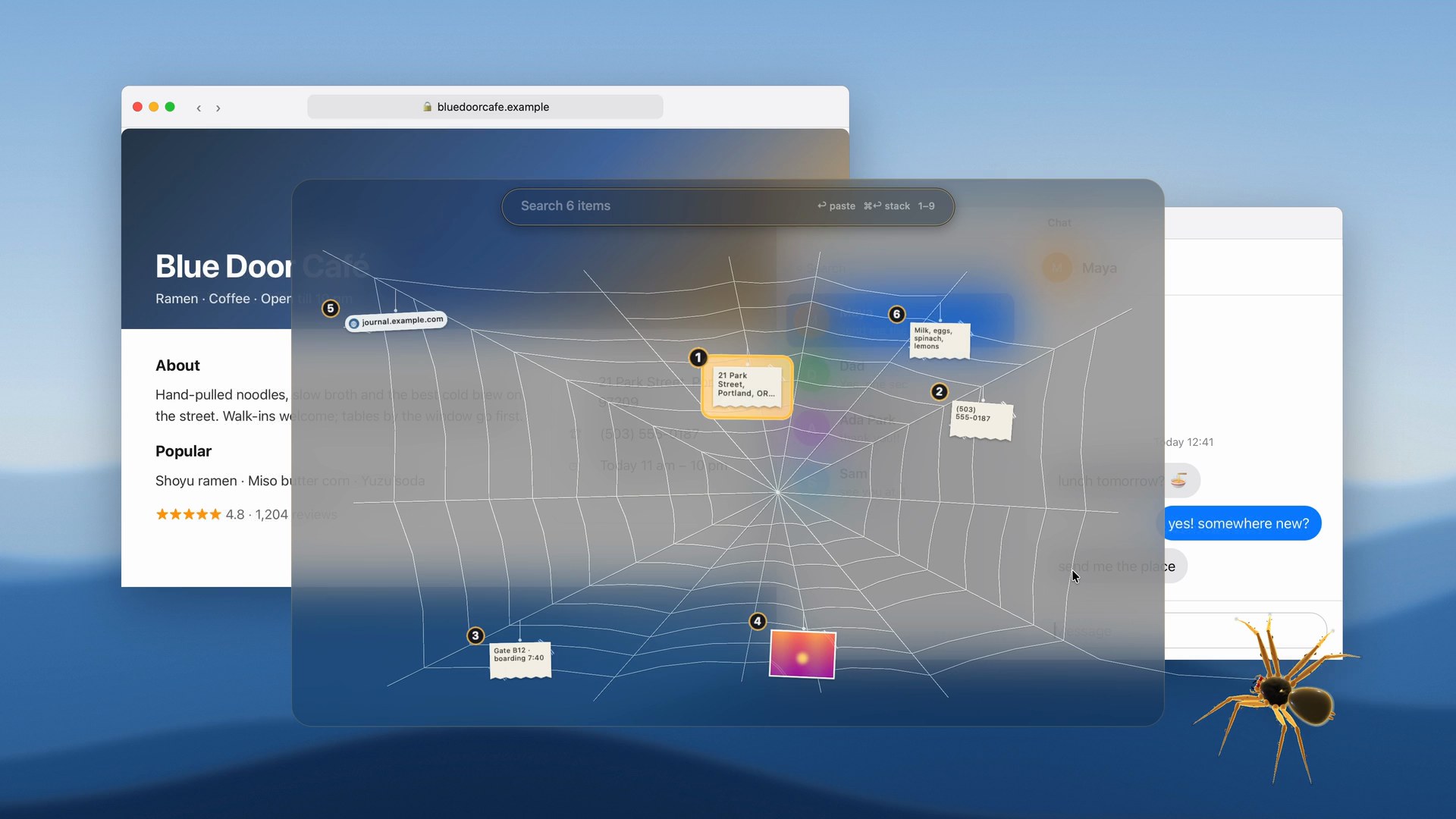
Open it
- ⇧⌘Space (if macOS already uses it: ⌃⇧V or ⌃⌥Space)
- Double-click the spider · spider menu → Nest · menu bar → Open Nest
- Size and place New: about 60% of the display (13" MacBook Air: 882×551), on the display with the mouse, over full-screen apps and in every Space.
- One page New: about 20–30 items hang at a time. Scroll or Page Down/Page Up (Fn↓/Fn↑); the search field shows "page 2/34".
- Order: pinned first, then newest. Items on the page get numbers 1–9.
- Hover for a larger preview; click (or Tab) for the card. The app you were in stays active — that's where pasting goes.
Close: Esc (clears a search first), the shortcut again, a click outside the pane, or choosing an item. Clicks on the pane or search field never close it.
10Searching and the Nest keyboard
The search field is a real text field (Spotlight-style): start typing at once, your app stays active. Search runs over the whole history in the background while you type.
| Key | What it does |
|---|---|
| ↩ / Enter | Paste the focused item |
| ⇧↩ | Paste as plain text (or an image's text) |
| ⌘↩ New | Add the focused item to the Paste Stack (the Nest stays open) |
| 1–9 | Paste that item (empty search; type a space first to search numbers) |
| Typing | Search |
| ← → ↑ ↓ | Move to the nearest item that way |
| Tab | Open / close the focused item's card |
| ⌫ | Edit the search; with a card open, remove that item |
| Page Down/Page Up, scroll | Older / newer page |
| Esc | Close the card → clear the search → close the Nest |
Searched: text, links and domains, file names, the source app, captions, text inside images. All words must match. Filters: img/image/shot, link/url, code, file, text, pin, secret.
11Item card
| Action | Key | Shown when | What it does |
|---|---|---|---|
| Paste in <App> | ↩ | Always | Original back on the clipboard, Nest closes, pasted into your app |
| Paste Text | ⇧↩ | Images with text | Pastes the text read from the image |
| Plain | ⇧↩ | Formatted text | Pastes without formatting |
| Transform | — | When useful | UPPERCASE, lowercase, Title Case, Trim, One Line, Pretty JSON, URL Decode |
| Add to Stack New | ⌘↩ | Always | Queues it on the Paste Stack |
| Pin / Unpin | — | Always | Shown first, never dropped, kept by Clear History |
| Open | — | Always | Opens the file, link, or text/image via a private temporary file |
| Remove | ⌫ | Always | Deleted, including its files on disk |
12Paste Stack New
- ⌃⌥V anywhere queues your newest copy (changeable; ⌃⌥⇧V or ⌃⌥S if taken). In the Nest: ⌘↩ or Add to Stack.
- While the stack holds items, every ⌘V pastes the next one; empty again, ⌘V is normal.
- A strand beside the nest corner shows the queue and a gold "Stack N" counter. Clear Stack in the spider menu; Clear Paste Stack (N) in the menu bar.
- Needs Accessibility. Items removed from the history leave the stack.
13Drag in, drag out
- Out: pull an item in the open Nest; its strand snaps and it becomes a normal drag into Finder, Mail, Messages, a browser or an editor.
- In: drop a file, text, link or image on the spider to catch it.
14Silk Notes
Write and hang
- ⌥N (or ⌃⌥N, or menu bar → New Silk Note): an editor opens near the pointer; ↩ hangs it, ⇧↩/⌥↩ new line, Esc cancels, clicking away saves.
- Notes hang below the menu bar and toolbars; every note stays visible. Hover ~0.35 s to peek; click to edit; the bin deletes; drag anywhere (also another display); positions survive restarts.
- Any item in the Nest can become a note: open its card → Hang as note New.
- Encrypted on disk; visible even when the spider is hidden.
Right-click menu New
Edit · Copy · Pin to the app you're in (the note then shows only with that app) or Make Global · Return to Top (after you've dragged it) · Remove reminder · Done ✓ · Delete.
Reminders New
- Write a time in the note — "call Sam at 4 pm", "at 17:30", "tomorrow 9am", "in 20 min", "in 2 hours" — and it gets a small clock badge with the time.
- When it's due, the note's spider drops down and wiggles the note, and offers Snooze 10 min and Done.
- Optional: also a macOS notification (Settings → "Show a macOS notification when a Silk Note reminder is due", off by default; macOS asks once).
- A reminder that came due while SilkNest wasn't running shows when it starts.
Done and checklists New
- Done ✓ puts the note away; Undo brings it back for five seconds.
- Lines starting with
[ ]become checkboxes; click one to tick it ([x]).
Find notes
Notes show up in Nest search next to your copies; type note to see only notes.
15Menu bar menu
| Item | What it does |
|---|---|
| Open Nest / Close Nest | Shows your Nest shortcut |
| New Silk Note | Note editor |
| Catch Every Copy ✓ | Hunt on/off |
| Hide Spider / Show Spider | Spider and nest marker |
| Don't Catch from App ✓ New | Names the app in front; ticked when its copies are ignored. Click again to catch from it again |
| Clear Paste Stack (N) New | Only while the stack holds items |
| About SilkNest · Check for Updates… | Version; check now (always says the result) |
| Settings… ⌘, · Quit ⌘Q | Quit saves notes and history first |
16Settings
Shortcuts (recorder, Reset, status): Open the Nest (⇧⌘Space), Catch Copy (not set), New Silk Note (⌥N), Show/Hide Silk Notes (not set), Add newest copy to Paste Stack (⌃⌥V). Click, press keys; Esc cancels, ⌫ clears; a free fallback is used if macOS owns the default.
When you choose an item: "Paste it into the app (recommended)" or "Only copy it"; Direct paste status with Enable….
| Behaviour | Default |
|---|---|
| Catch every copy automatically (Hunt) | On |
| Catch ⇧⌘3 / ⇧⌘4 screenshots instantly (hides macOS's floating preview) | Off until you agree; off restores macOS's setting |
| Ignore text that terminals copy on selection | On |
| Remember history after restart | On (off deletes the saved history) |
| Update SilkNest automatically | On |
| Open SilkNest at login | Off unless chosen |
| Show a macOS notification when a Silk Note reminder is due | Off |
Privacy: Protect secrets (on) · Never catch secrets at all (off) · Never catch from (apps you choose; none by default) · Uninstall SilkNest… · Clear History… (pins kept; files deleted).
17All shortcuts
| Shortcut | Where | Action |
|---|---|---|
| ⇧⌘Space | Anywhere | Open / close the Nest (fallbacks ⌃⇧V, ⌃⌥Space) |
| ⌃⌥V New | Anywhere | Add newest copy to the Paste Stack |
| ⌥N | Anywhere | New Silk Note (fallback ⌃⌥N) |
| Not set | Anywhere | Catch Copy; Show/Hide Silk Notes |
| ⌘V | Stack holds items | Pastes the next stack item |
| §10 keys | Nest open | ↩ ⇧↩ ⌘↩ 1–9 arrows Tab ⌫ Page Up/Down Esc |
| Right-click | A Silk Note | The note's menu |
| ↩ ⇧↩ Esc | Note editor | Save, new line, cancel |
| ⌘, ⌘Q | Menu bar menu | Settings, Quit |
18Permissions
| Permission | For | When asked |
|---|---|---|
| Accessibility (optional) | 1-click paste, the Paste Stack's ⌘V, finding the text caret | First paste, "Turn on 1-click paste", or Settings → Enable… |
| Files & Folders | Catching screenshots you save | macOS asks the first time |
No Screen Recording, Full Disk Access, microphone or camera. Accessibility is used only to press ⌘V for you; keystrokes and screen contents are never recorded.
19Privacy, storage and security
- Location:
~/Library/Application Support/SilkNest. - Layout New:
History/order.enc,History/<id>.meta.enc(metadata, image text, thumbnail),History/<id>-<n>.enc(content),Notes.enc, key.history.key. A new copy writes only its own files. - Encryption: AES-256-GCM, random 256-bit key made on your Mac. Access: folder 0700, files 0600; excluded from Time Machine.
- Never on disk: password-manager copies and detected secrets (text and images).
- Deletion: Remove, Clear History and the 1000 limit delete the item's files, including image text.
- Migration from 1.2.2: the old index is backed up to
History (v1 backup)and checked byte for byte, new files are written and read back, then the old index is removed; the backup goes after the next successful launch. If anything fails, the old format keeps working. (Tested against the real 1.2.2 code.) - Network: only the update check to silknest.app (20 s after launch, every 3 h, on wake) and downloading an update. Nothing about you or your clipboard is sent; turning off automatic updates in Settings stops it.
20Updates and signing
An update is installed only if: (1) version.json carries a valid Ed25519 signature from the SilkNest release key; (2) it is newer; (3) the zip comes from silknest.app over HTTPS and matches the signed SHA-256; (4) the new app satisfies the installed app's own designated requirement — for 1.3.0, "studio.webber.spider, signed with the SilkNest Signing certificate". 1.2.2 checks only the identifier, which is how it accepts the first certificate-signed release. History, notes and settings are never touched.
21Uninstall New
Settings → Uninstall SilkNest…: restores macOS's screenshot preview, removes the login item, optionally deletes history, notes, key and preferences, moves SilkNest to the Trash and quits. With Homebrew: brew uninstall --cask silknest (--zap removes its data too).
22Limits and numbers
| Thing | Value |
|---|---|
| History | 1000 items; oldest unpinned released first; pinned never |
| Items hanging in the web | One page, ~20–30 depending on the display |
| Nest size | ~60% of the display, 640–1100 × 480–780 pt |
| Secrets | Memory only; removed after 2 minutes unless pinned |
| Images | Up to 40 MB; text read at max 1600 px; thumbnails ≤240 px |
| Search | ~2 ms over 1000 items, after a 30 ms typing pause |
| Memory (1000 items, Retina) | ~70 MB at rest · ~190 MB Nest open · ~55 MB spider hidden |
| Spider | 3/4 tilt ≈ 25°; resting size 60%; naps after 10 quiet minutes; 10 frames a second when still |
| Update checks | 20 s after launch, every 3 h, on wake |
| System | macOS 14+, Apple silicon |
23Official and development builds
| Official (releases) | Development (built without the certificate) | |
|---|---|---|
| Name / bundle ID | SilkNest · studio.webber.spider | SilkNest Dev · app.silknest.dev |
| Signed with | "SilkNest Signing" certificate | Ad-hoc |
| Data | …/Application Support/SilkNest | …/Application Support/SilkNest Dev |
| Updates | Automatic, signed | Off |
A development build never touches an installed SilkNest. Developer-only modes (Spider Study, automation, previews) exist only in DEBUG builds. Source on GitHub; see CONTRIBUTING.md and SECURITY.md.
24Quick reference
| I want to… | Do this |
|---|---|
| Save something | Just copy it |
| Paste what I just copied | ⇧⌘Space, ↩ |
| Find something | ⇧⌘Space, type (searches all 1000, also text in screenshots) |
| Paste the 3rd newest | ⇧⌘Space, 3 |
| See older items | Nest open → scroll, or Page Down |
| Paste without formatting | Focus it, ⇧↩ |
| Paste several things in order | ⌃⌥V after each copy, then ⌘V ⌘V … |
| Get text out of a screenshot | Click the image → Paste Text |
| Keep an item | Click it → Pin; find pins with pin |
| Delete an item | Click it → Remove (or Tab, ⌫) |
| Put an item into Finder/Mail | Drag it out of the Nest |
| Write a quick note | ⌥N, type, ↩ |
| Get reminded | Put a time in a note: "in 20 min", "at 4 pm" |
| Make a checklist | Start note lines with [ ] |
| Stop catching for a while | Spider → Pause, or Hunt: Off |
| Hide the spider | Spider → Hide; menu bar → Show Spider |
| Wipe history | Settings → Clear History… (pins kept) |
| Remove SilkNest completely | Settings → Uninstall SilkNest… |